
A Loyalty Program is one stamp card: how many stamps it takes, what the customer gets at the end, and the QR code they scan to join. Most businesses only ever need one.
Set it up
- Sign in and open Loyalty Programs from the menu.
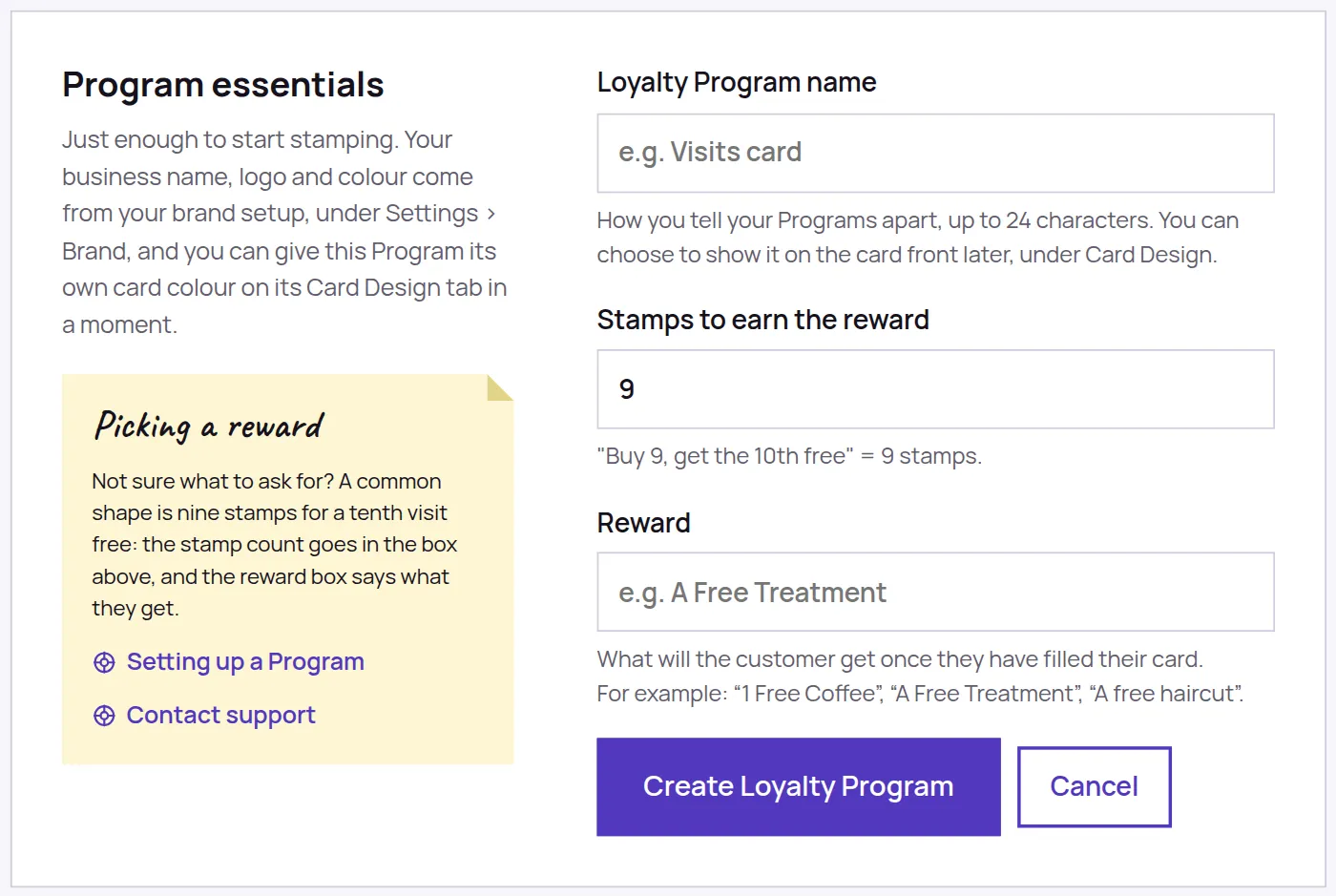
- Choose Add a Program.
- Fill in Loyalty Program name. It is mainly how you tell your Programs apart, for example Visits card, and it can be up to 24 characters. If you run more than one card you can also show it on the front of the card, using Card Design.
- Set Stamps to earn the reward. This is how many stamps a customer collects before the reward is due. Anything from 2 to 12 works, and it starts at 9, which gives you buy nine, get the tenth free.
- Fill in Reward with what they actually get, in the words you would use at the counter, for example your tenth visit free.
- Choose Create Loyalty Program.
That takes you straight to the Program Overview, where your enrolment link and QR code are already waiting.
What you do not fill in here
Your business name, logo and brand colour are set once under Settings, then Brand, and every Loyalty Program uses them. You never type them in again. If you want one Program to look different from the rest, its Card Design tab can give it a colour of its own.
What is next
The Program page has three tabs. Overview holds your enrolment link and QR code, and the Resources tab holds the signs you print. Offer is where the stamp count and reward wording live if you want to change them later, along with a switch that gives every new customer a free stamp as they join, and what the sign-up page asks for. Card Design is the look of the card itself.
Every account can run up to ten Loyalty Programs at once, on Free and Pro alike. A Program you have disabled does not count towards that.