
Your QR code is how customers join. It is on the Program, ready to print, and it never changes.
Get your code
- Open Loyalty Programs and choose the Program you want.
- Open the Resources tab. Everything printable is there, each with a preview beside it.
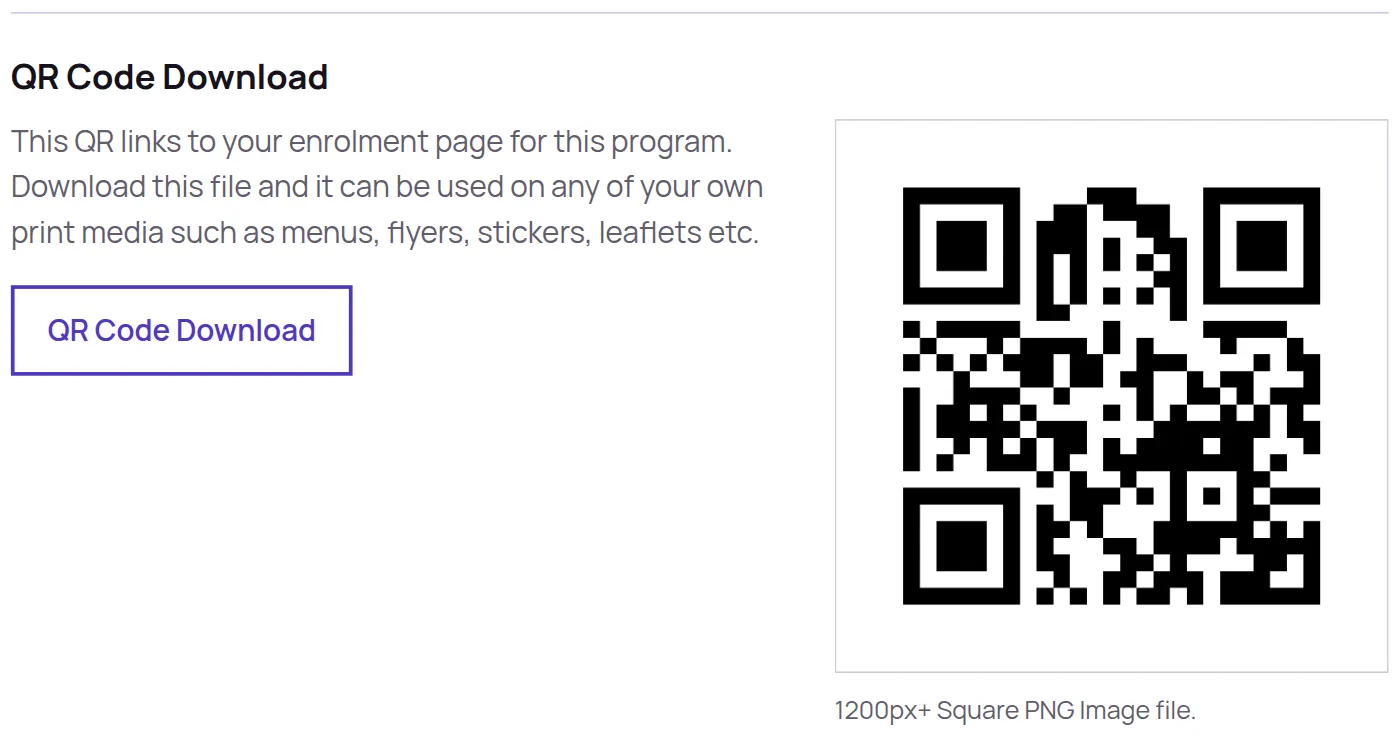
- Choose a ready-made sign, or QR Code Download for the code on its own as a high-resolution image to put into a design of your own.
- Print at actual size, without any scale-to-fit setting, so the code comes out the size it was drawn.
The ready-made signs
Further down the same tab are two signs sized for where they go: a Table Talker that folds into a standing sign for tables and shelves, two to a sheet, and a Counter Sign for the acrylic stand beside your till. Both are printed in your own brand colour with your logo at the top, both carry the same code as everything else here, and you can change the wording on either before you print it.
A sign carries your business name, your colour, what the offer is, the QR code, and a line explaining that the card goes into Apple Wallet or Google Wallet with no app to download. Customers who are unsure what they are scanning read that line and carry on.
Where to put it
- On the counter, facing the customer, where somebody paying can reach it without moving.
- In the window, if passers-by are worth catching.
- On a table tent or a menu, wherever people wait.
The link, for everywhere that is not paper
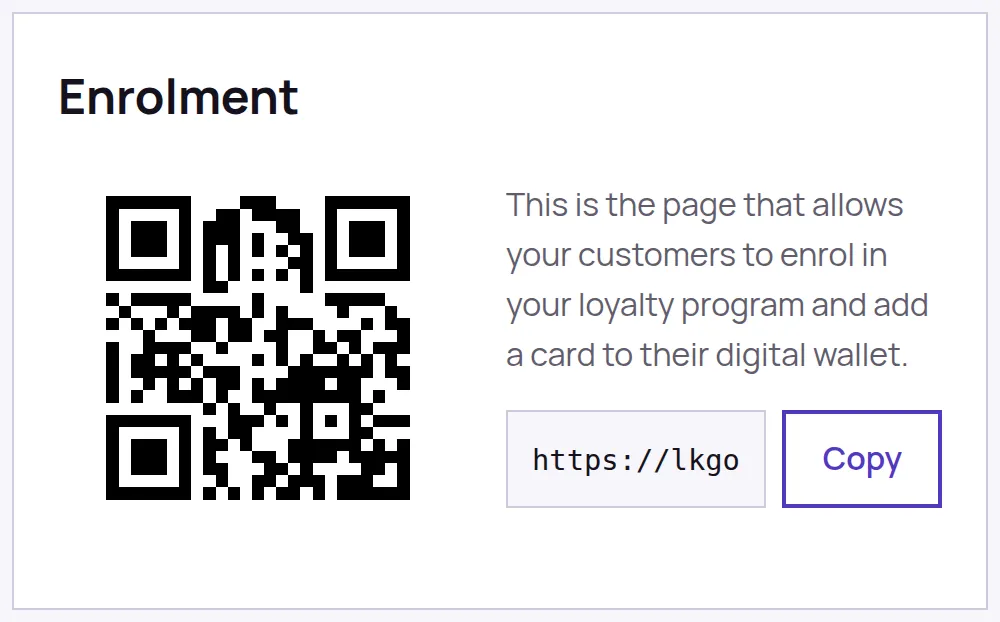
The Overview tab has the same code again, beside your sign-up link with a Copy button. The link works anywhere you can put a link: your website, a receipt, a social post, an email footer. It opens the same sign-up page the QR code does. Hovering the code there, or tabbing to it, downloads the image without leaving the page.
The link and QR code are fixed to the Program, not to your details. Renaming the Program, changing your logo or changing your colour does not break anything you have already printed.