Back to Dashboard

Share your card sign-up link

Customer enrolment

The same sign-up page as your counter QR code, as a link you can put anywhere.

  1. Open Loyalty Programs and choose your Program.
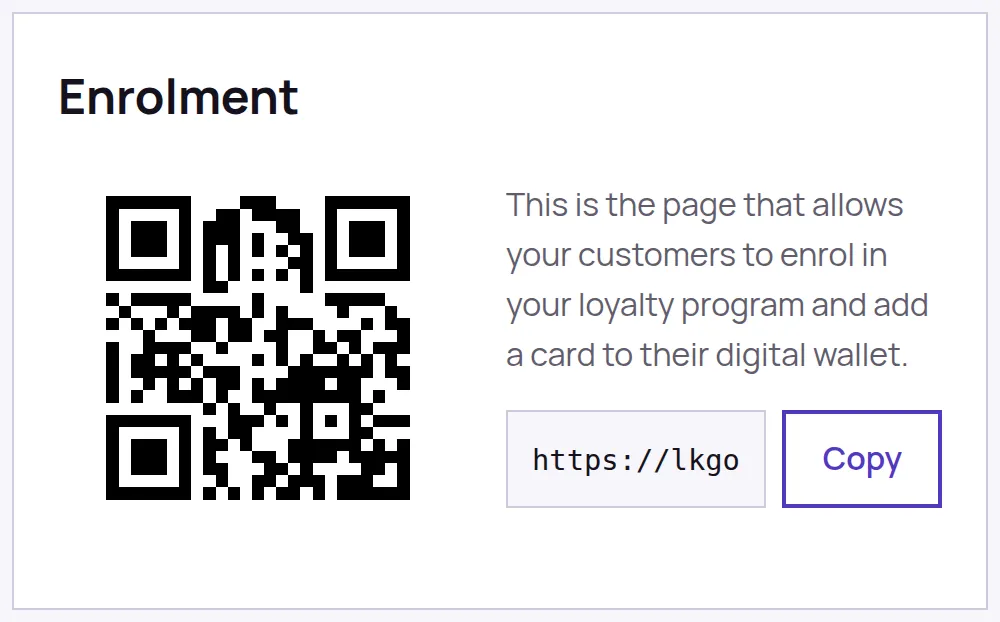
  2. Find the Enrolment panel on the Overview tab.
  3. Choose Copy beside the link.
  4. Paste it wherever you want it.
The Enrolment panel on a Program Overview: the QR code on the left, and beside it a line explaining what the code is above the sign-up link with a Copy button.
The link and the QR code are the same address. Copy takes the link; the QR is the same thing for somebody standing in front of you.

Where it earns its keep

  • Your website, on the page people already visit.
  • The footer of an email, or a booking confirmation.
  • A social post, where a QR code is useless because the reader is already holding the phone.
  • A printed receipt, if your till can put a line on one.

What it opens

Exactly what the counter QR opens: your sign-up page, in your colours, asking for whatever you have chosen to collect. Somebody who taps it on the phone they are holding is two taps from having the card.

The link is fixed to the Program, not to your details. Renaming the Program, changing your logo or changing your colour does not break a link you have already shared.

Still stuck?

If none of this covers it, send us a message and a person will reply. Tell us what you were doing when it went wrong, and we can usually sort it in one message.

So we can reply. We use it for nothing else.

Optional. Handy if it is quicker to talk it through.

A few words, such as: stamps not showing on a card.

What you were doing, what you expected, and what happened instead.