
There are three colour controls and they do three different jobs. Once you know which is which, this takes seconds.
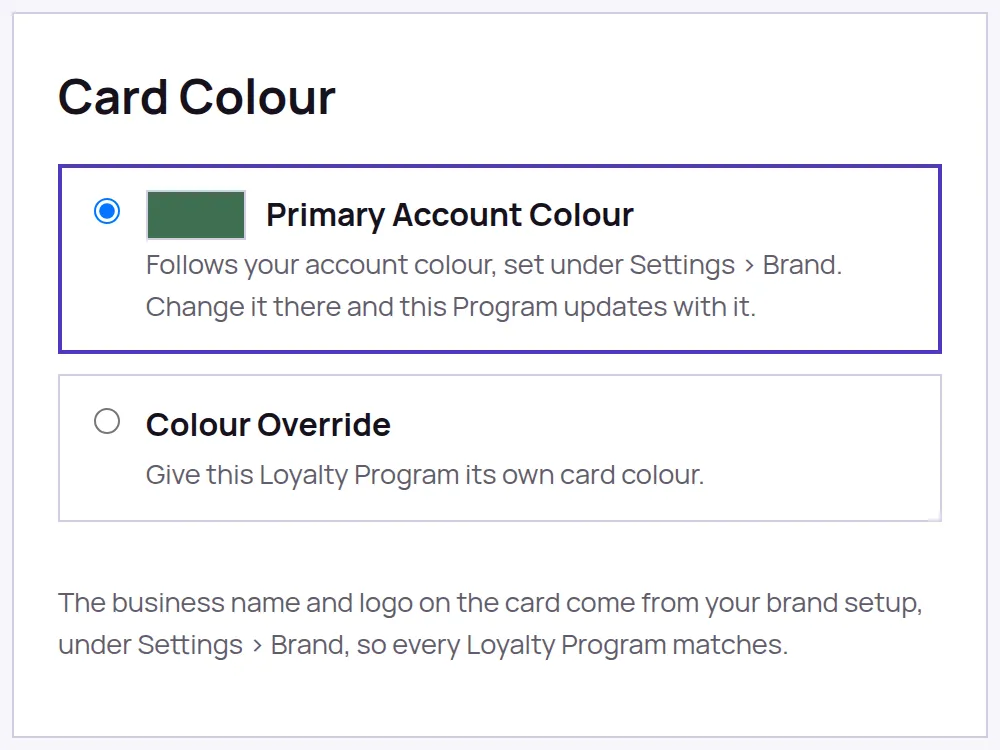
- Card Colour paints the whole card face. It is your brand colour unless this Program overrides it.
- Stamp area background colour paints only the band the stamps sit on. Leave it empty and it follows the card colour.
- Stamp colour paints only the marks themselves. Leave it empty and they follow the card text colour.
Change it for every Program at once
- Go to Settings, then Brand.
- In Business branding, set Primary brand colour.
- Choose Save.
Every Loyalty Program that has not been given its own colour follows this one, so your cards, sign-up pages and posters change together.
Give one Program its own colour
- Open that Program and go to the Card Design tab.
- In the Card Colour section, choose Colour Override instead of Primary Account Colour.
- Set the colour in the box that appears, either with the picker or by typing a hex code such as #5238bf.
- Choose Save Card Design.
You do not need to pick a text colour. LoyalPack works out whether black or white reads on the colour you chose and uses it, on the card and on the sign-up page.
Putting a picture behind the stamps
The Background section further down takes a picture, either one of yours or one from the built-in gallery behind Choose from library. When a card has a picture, the Overlay slider shades it darker or lighter so the stamps stay readable over the top.