
- Open Loyalty Programs, choose your Program, and go to the Card Design tab.
- Find the Stamp Icon section.
- Start typing in the search box to look through the icon library, or pick one of the marks already on screen.
- Watch the preview on the right update as you choose.
- Choose Save Card Design.
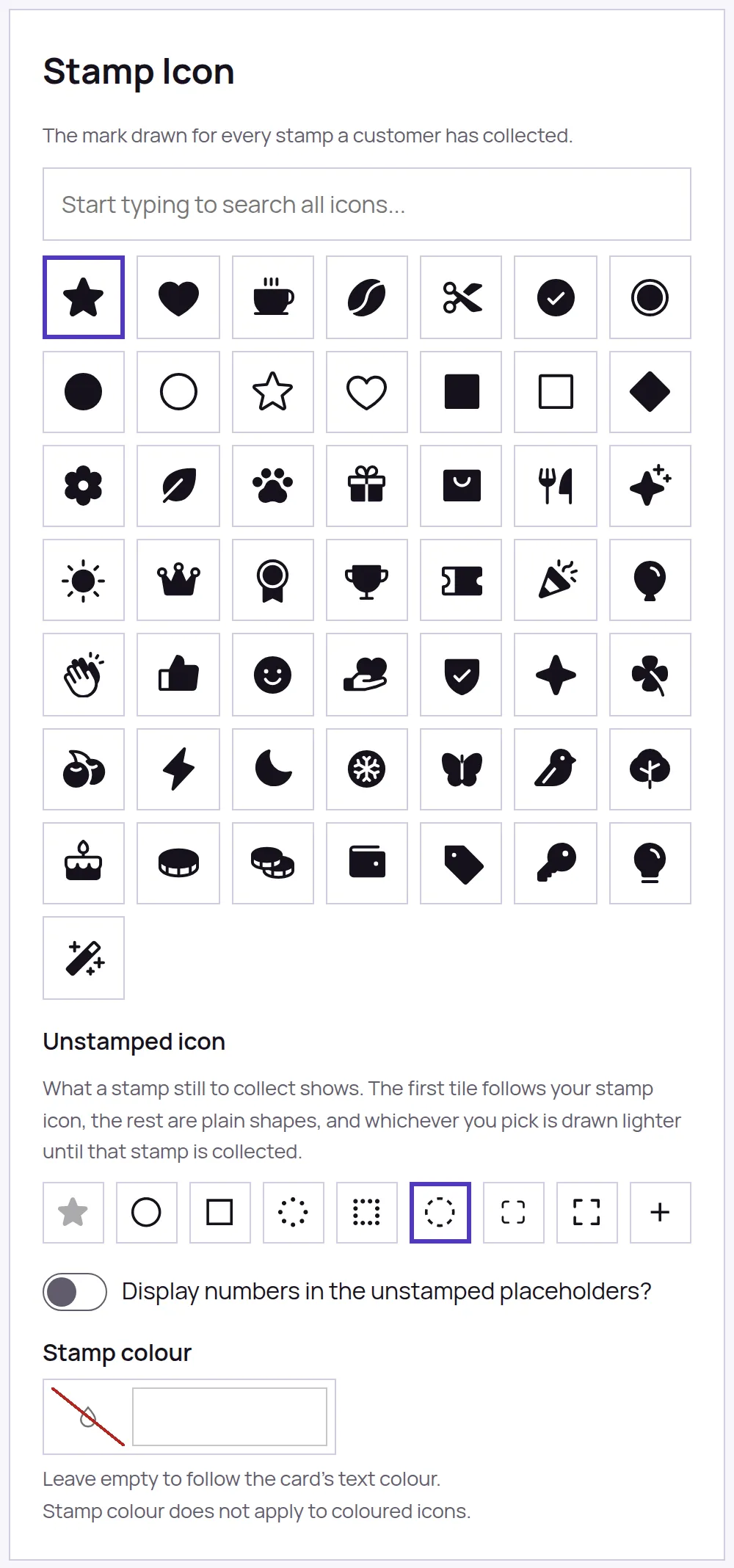
The marks you see before you type are picked out for your kind of business, if you have set a Business Type under Account, then Details. Searching always looks at the whole library, so nothing is ever hidden from you.
Stamps not collected yet
The same section has an Unstamped icon row, for the marks a customer has not earned yet. The first tile is your own stamp icon, shown lighter, and it changes as soon as you pick a different stamp icon above. The other eight are plain shapes to use instead: outline and dotted and dashed circles and squares, a corner frame, and a plus.
Underneath the row is a switch for numbering them. Turn it on and each mark still to collect carries its place in the card, 1 in the first, 2 in the second, and so on, so a customer can see at a glance how many are left. A number goes as soon as that stamp is collected, and it works with whichever of the nine marks you have chosen.
The colour of the marks
Stamp colour below the picker paints the marks themselves and nothing else. Leave it empty and the marks follow the card text colour, which is chosen to read against your card. Icons that come in colour of their own keep their colours and ignore this setting.
Cards opened in a browser show a new design straight away. A pass already in a customer wallet picks it up the next time that card is stamped or a reward is spent.