
- Go to Settings, then Brand.
- Find the Business branding section.
- Under Brand Icon, drag a file in, choose one from your device, or paste an image you have copied.
- On a phone or tablet there is a Take photo button as well, which opens the camera.
- Choose Save.
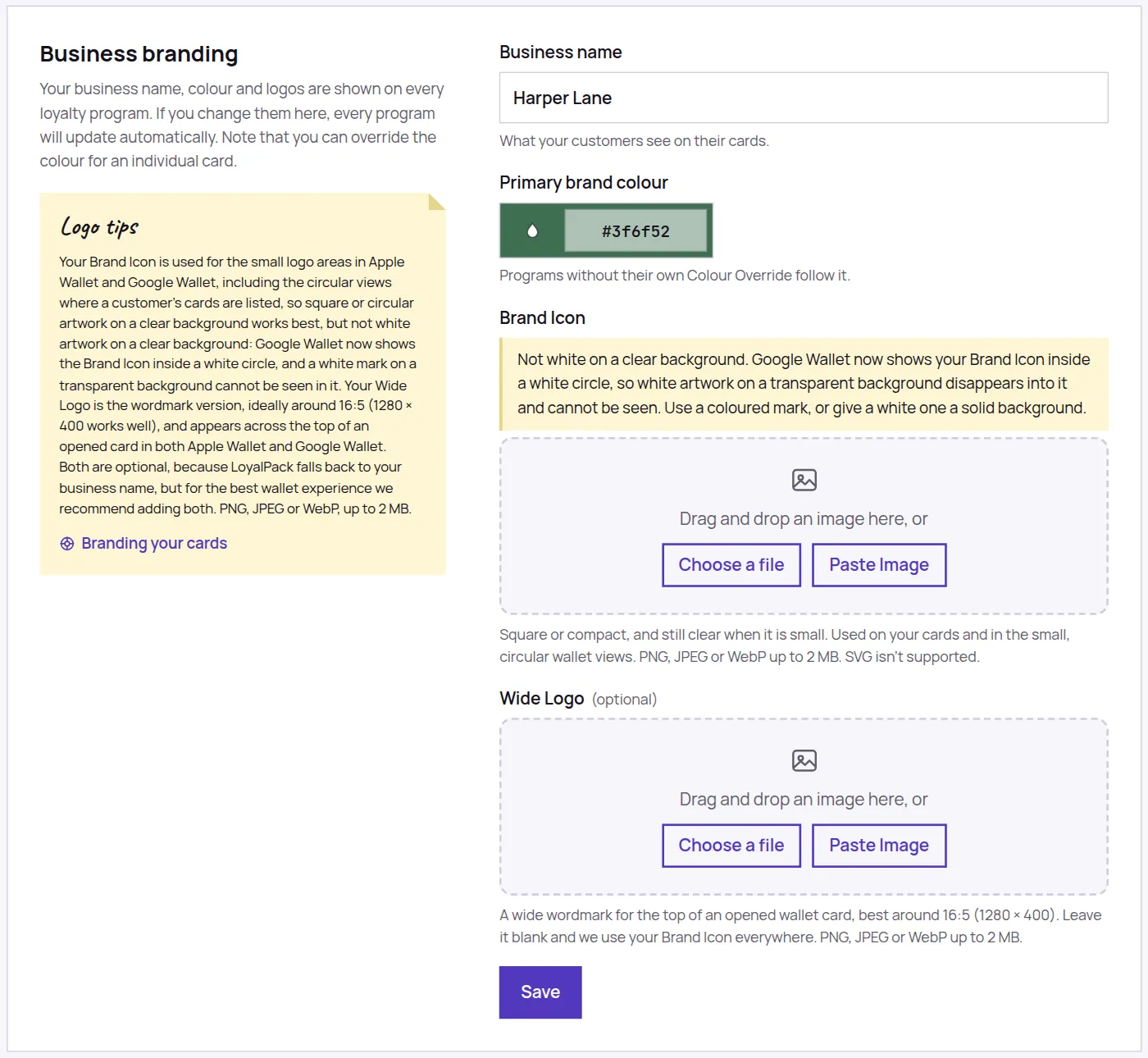
Your logo is set once for the whole account, not per Loyalty Program, so this is the only place you ever change it. It appears on your cards, on the sign-up page customers land on, on the signs you print, and beside any message you send, on the customer’s lock screen.
What to upload
- PNG, JPEG or WebP, up to 2 MB. SVG files are not supported.
- A square or circular logo on a clear background looks best, because it sits on your brand colour rather than on white. The artwork itself should not be white, though: see the note below.
- Something that still reads at the size of a thumbnail. Fine detail and small print disappear on a card.
- A PNG if you can. Apple Wallet can only carry a PNG inside the card itself, so a JPEG or WebP Brand Icon shows everywhere else but leaves the small mark on an iPhone lock screen as the plain LoyalPack one.
Your Brand Icon must not be white artwork on a transparent background. Google Wallet now shows the Brand Icon inside a white circle, so a white mark on a clear background disappears into it and cannot be seen. Use a coloured mark, or give a white one a solid background. This is about the Brand Icon only: the Wide Logo is not drawn in a circle.
The second slot, for a wordmark
Below the Brand Icon there is a Wide Logo, which is optional. It is for the wide version of your logo, the one with your name set out in full, ideally around 16:5 (1280 × 400 works well). Both Apple Wallet and Google Wallet show it across the top of an opened card. Leave it empty and the top of the card falls back to your Brand Icon, and then to your business name.
Taking a photo instead
On a phone or a tablet, both slots offer Take photo beside the other buttons, so you can photograph a sign, a menu board or a printed logo without getting the file onto the device first. It is there for speed rather than for quality: a photograph of a logo carries whatever was behind it, so where you have the real artwork, upload that instead.
After you take the photo we show it in a small window and ask you to fit it. Drag to move the picture and use the slider to zoom, then choose Use photo, or Retake if you want another go. The window is the shape of the slot you are filling, square for the Brand Icon and wide for the Wide Logo, so what you see in it is what ends up on the card.
Photos off a modern phone are far bigger than a card needs, so we shrink the fitted picture before it is uploaded. That is why a photo goes through in a moment and why one that once came back as too large now does not.
Replacing or removing it
Come back to the same control and drop a new file on it, take a photo, or choose one, to replace the old one; or use the remove control and save to go back to having none. The two slots are independent: replacing or removing one leaves the other exactly as it was.
With no logo, the sign-up page shows a circle with the first letter of your business name in it, so the page never looks unfinished.