
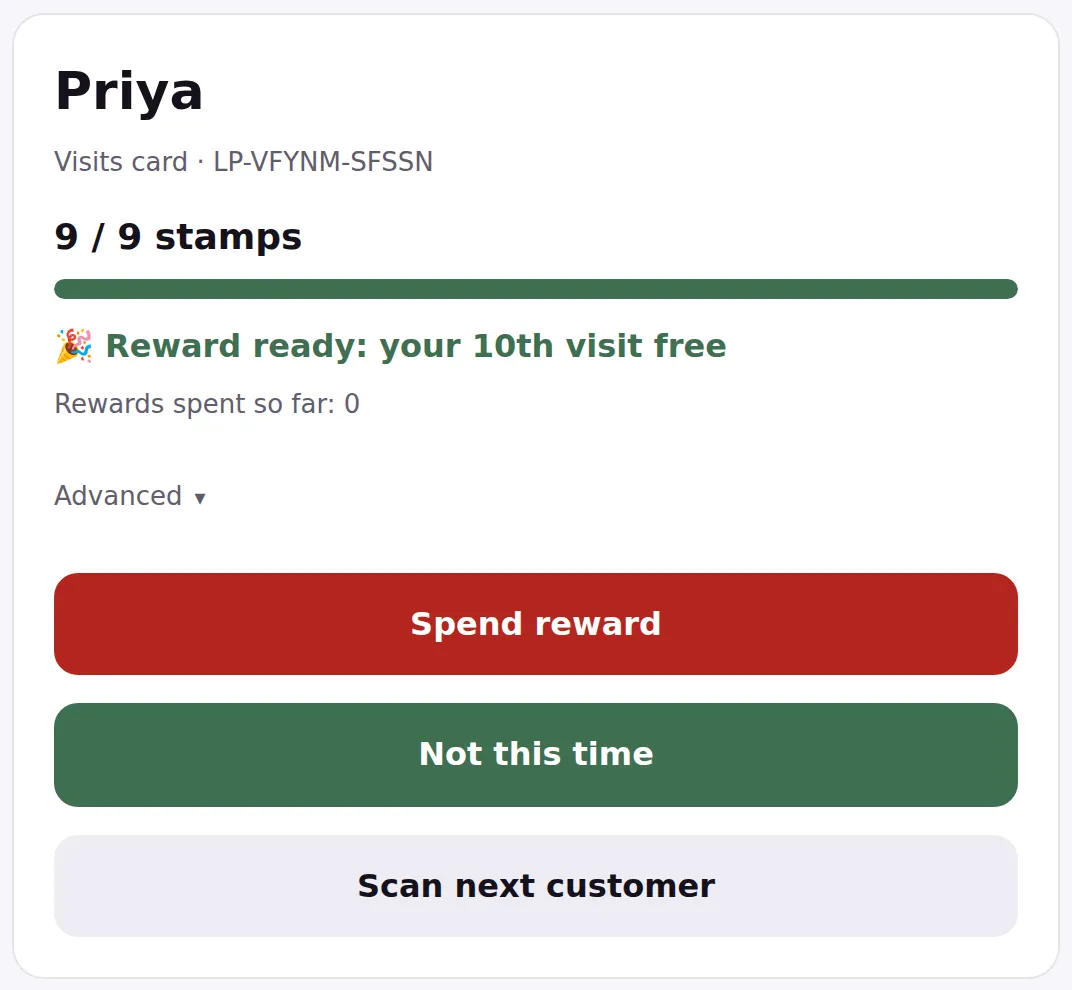
When a card reaches the number of stamps you set, LoyalPack App says so as soon as you read it, and the buttons change.
- Scan the customer's card as usual.
- The screen tells you the reward is ready and names it.
- Choose Spend reward.
- Check the reward wording it reads back to you, then choose Spend reward again to confirm.
- Hand over the reward.
What happens to their stamps
Spending takes off the stamps the reward cost, which on a full card is all of them. The card goes back to empty, and the next stamp starts it off again.
If they would rather keep it
Beside the Spend reward button there is Not this time. Use it when somebody has filled their card but is buying something today and wants to save the reward. The reward is put aside for them and the visit they are paying for is stamped, so they lose neither. See Keep a reward for later.
A reward saved that way shows on every scan as Available rewards, and the button reads Spend saved reward. Claiming it costs no stamps at all: their new card keeps exactly the stamps it had, because the stamps that earned this reward were used up when they filled the old one. Nothing is added either, because the reward is not a purchase.
If they fill the new card while a saved reward is still waiting, you get Spend reward and Not this time again. Spend reward spends the full card first and empties it. The saved reward is untouched, and every scan goes on saying so until they claim it.
If you spend one by mistake
There is no undo button. If it happens, scan the card again and use Award stamp to put the stamps back on one at a time, then carry on. The customer is no worse off.
Keeping track
Every reward spent is recorded. Customer Cards has a Rewards earned column and a Rewards spent column, so you can see what a card has produced and what has been handed over off it, and the Audit Log under Reports shows the activity itself, including who was signed in at the time.