
Scanning happens in LoyalPack App, which is the counter tool. It is a separate app from the dashboard you set your Loyalty Program up in, opened with the same LoyalPack login, and it is where every scan and stamp happens and every reward is spent.
It takes a couple of seconds once it is open, so most people leave it open on a phone or tablet through a shift.
Scan it
- Open LoyalPack App on the device you serve from.
- Choose Start camera, and allow the camera the first time you are asked.
- Point it at the QR code on the customer's card, either in their phone wallet or on their card page.
- Their name and stamp count appear, along with the reward they are working towards. On a Program that does not collect a name it says Card holder, and the card code on screen is what tells one customer from another.
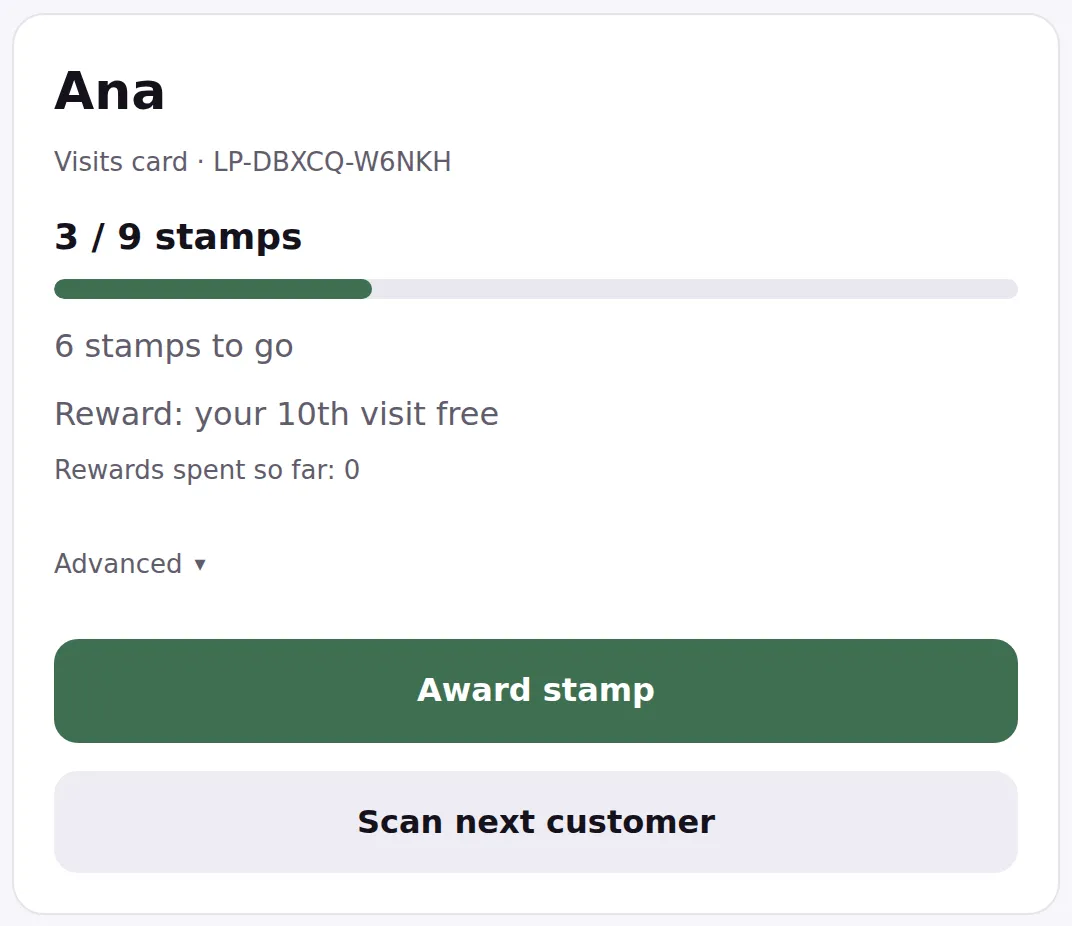
Scan the code on the customer phone, not your own sign. The sign is for signing new people up.
If the camera will not play
Some browsers will not scan, and a cracked or very dim screen can defeat any camera. Every card has a code printed on it in the form LP-XXXXX-XXXXX. Open Enter code manually under the camera, type it in, and choose Look up.
Card codes never contain the letters O, I or L, or the digits zero or one, so if you are squinting at a character it is one of the others.
More than one Loyalty Program
You do not choose a Program before scanning. The card knows which one it belongs to, and LoyalPack App tells you which as soon as it reads it.