
They have the card, the camera will not read it
Every card carries a code in the form LP-XXXXX-XXXXX. Open Enter code manually under the camera, type it in, and choose Look up. That works with no camera at all, on any device, and it is the one to reach for at the counter.
The codes never contain the letters O, I or L, or the digits zero or one, so a character you cannot quite read is one of the others.
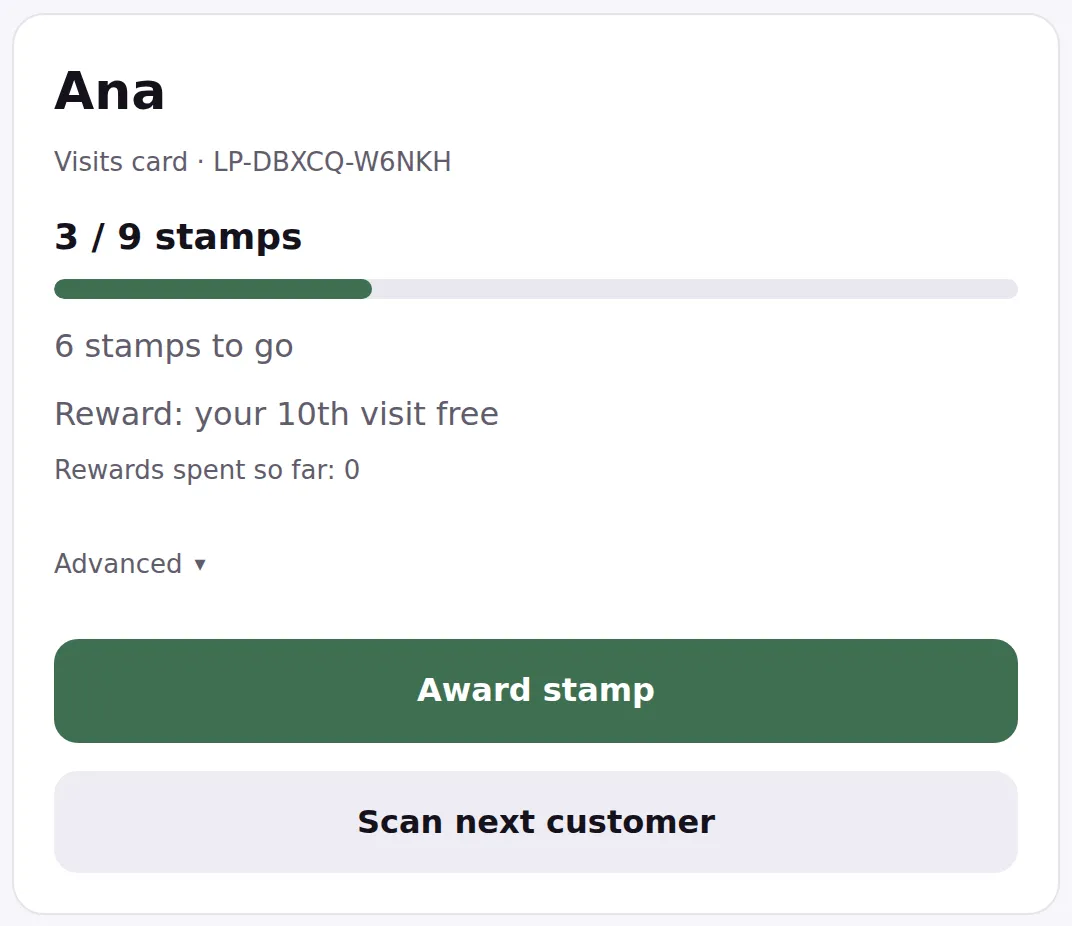
They have not got their phone at all
An Administrator can look them up. Open Customer Cards from the menu: the list has a search box that matches a first name, an email address or a card code, and every row shows its card code. Clicking the row opens that card, and the page shows the card itself, QR and all, so you can scan it straight off your screen with the device you stamp on.
Stamping from that page
That same page can add the stamps itself. Under the customer’s details there is Award stamps: choose how many with the minus and plus, and the line underneath tells you what that many would do to this card, including when it finishes one and earns the reward. Choose Award stamps and it is done, exactly as if you had scanned them, and their wallet catches up in a moment.
A card that is already full will not take stamps here, and the page says so. A finished card is a question for the customer, so hand the reward over or save it for later at the counter first.
Everything on that page needs Administrator access, so somebody working the counter on a Team Member login cannot use either route. If that comes up often, agree in advance what staff should do: taking a name and stamping it next visit is usually kinder than sending somebody away.