
- Go to Settings, then Brand, for your name, colour and logos.
- Go to Account, then Details, for your contact name, your business type and your business contact details.
- Choose Save on whichever you changed.
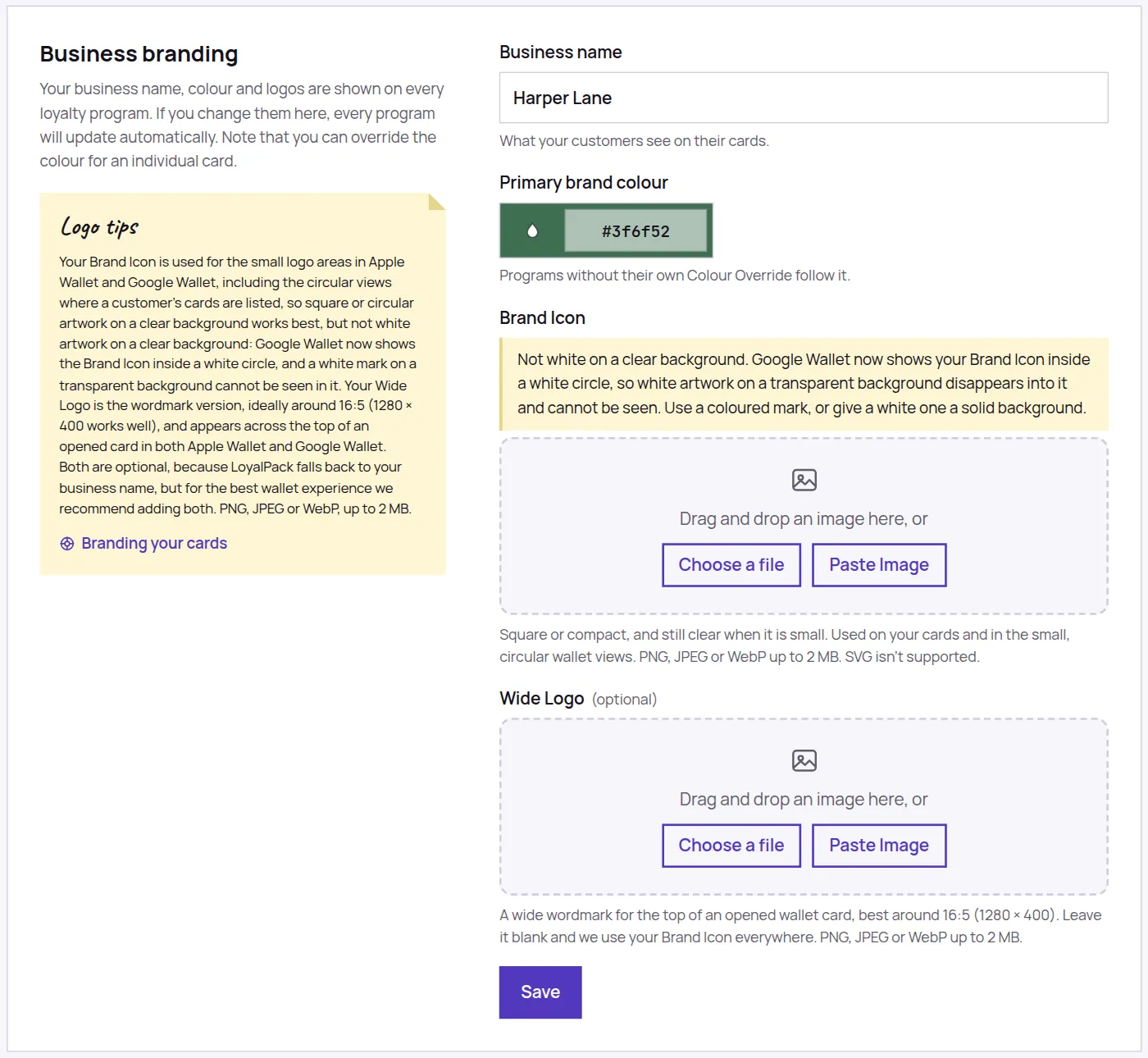
What each part reaches
- Business name: the name on every card, every sign-up page and every poster. This is what customers see.
- Primary brand colour: the colour of the card and the sign-up page, unless a Program has been given its own on its Card Design tab.
- Brand Icon: your logo everywhere it is shown small. There is no per-Program logo.
- Wide Logo: an optional wordmark, shown across the top of an opened wallet card.
- Business type, in Account Details: it decides which stamp icons and background pictures the card designer offers first, and changes nothing that has already been saved.
Your contact details
Account, then Details, is where we keep the everyday facts about you and your business: the first and last name of the person we should speak to, and your business phone number, email address, postal address and website. Every one of them is optional, and you can fill in as few or as many as you like.
- None of it goes on a card, a sign-up page or a poster. It is not shown to your customers anywhere, and it is not part of your branding. What customers see is set under Settings, then Brand.
- Your business email address is not your sign-in address. Changing it does not change how you log in, and we will not send your sign-in links there.
- You can leave the https:// off your website. We will add it for you.
- The contact name is your own, so everyone on the account fills in their own. The business details belong to the account, so an Administrator sets those once for everybody.
The two logo slots
Business branding takes two pictures, because wallets draw a logo in two quite different shapes. You upload each one separately, and neither is required.
- Brand Icon: the small logo area in Apple Wallet and Google Wallet, including the circular views where a customer’s cards are listed and the mark shown beside a message on their lock screen, as well as your cards and sign-up pages. Square or circular artwork on a clear background works best, and it should still read at the size of a thumbnail. Not white artwork on a clear background, though: Google Wallet now shows the Brand Icon inside a white circle, so a white mark on a transparent background cannot be seen there.
- Wide Logo: the wordmark version of your logo, ideally around 16:5 (1280 × 400 works well). Apple Wallet and Google Wallet both show it across the top of an opened card, so it is worth adding if you have one.
Both are optional: with neither, LoyalPack falls back to your business name in text, so a card never looks unfinished. For the best result in a wallet, add both.
Who can change it
Administrators only, and that covers your business type and your business contact details as well as your branding. A Team Member signed in on the same account will not see any of it, which is deliberate: these are facts about the business rather than about them. Their own contact name is theirs to change, and always has been.
Changing any of this never touches a customer’s stamps. Cards opened in a browser show the new details at once; a pass in a wallet picks them up the next time that card is stamped.